Pokercat Guide
Quick Start
Introduction
Pregame Setup
Before you start using strategy, Pokercat needs a safe and accurate way to capture the game screen. Refer to the list below for each site’s availability. Open Site Settings in the navigation sidebar to view the full setup guide for that site.
| Site | Availability | Last update |
|---|---|---|
| China | ||
| 德扑圈 (HHpoker) | Coming soon | — |
| 微扑克 (WePoker) | Coming soon | — |
| 德扑之星 | Coming soon | — |
| 红龙扑克 (Red Dragon) | Coming soon | — |
| GGPoker Network | ||
| GGPoker | Available | 2026.7.17 |
| Natural8 | Available | 2026.7.17 |
| PokerOK | Available | 2026.7.17 |
| Other Sites | ||
| PokerStars | Available | 2026.7.17 |
| WPT Global | Coming soon | — |
| Winamax | Coming soon | — |
| 888poker | Coming soon | — |
| Global Poker | Coming soon | — |
| KKPoker | Coming soon | — |
| CoinPoker | Available | 2026.7.24 |
| ClubWPT Gold | Coming soon | — |
| Poker Now | Coming soon | — |
| iPoker | ||
| Bet365 | Coming soon | — |
| Red Star | Coming soon | — |
| Champion Poker | Coming soon | — |
| PartyPoker | Coming soon | — |
| Network overview | Coming soon | — |
| WPN | ||
| ACR | Coming soon | — |
| PokerKing | Coming soon | — |
| Black Chip Poker | Coming soon | — |
| YaPoker | Coming soon | — |
| PaiWangLuo | ||
| Ignition | Coming soon | — |
| Bovada | Coming soon | — |
| Ozoon | Coming soon | — |
| Club Apps | ||
| PPPoker | Coming soon | — |
| ClubGG | Coming soon | — |
| PokerBros | Coming soon | — |
| Suprema Poker | Coming soon | — |
| X-Poker | Coming soon | — |
| Pokerrrr 2 | Coming soon | — |
| Chico Network | ||
| BetOnline | Coming soon | — |
| SportsBetting.ag | Coming soon | — |
| TigerGaming | Coming soon | — |
Insert game data
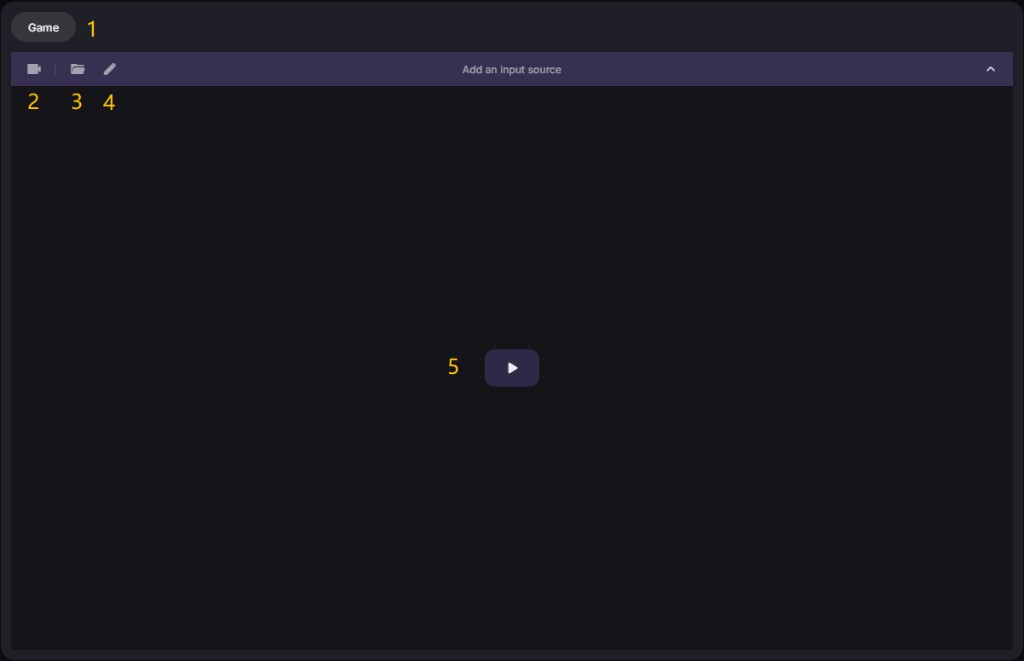
Insert video source
Choose how the dashboard captures the table. You can share your desktop, a browser tab, or a single window, or use a camera for games that block screen capture.
| Element | Brief |
|---|---|
| Screen share | The browser’s built-in screen share. It grabs an ordinary game window, tab, or desktop. |
| Camera input | A virtual or hardware camera feed, for games that block screen capture. |
Camera input accepts a software virtual camera (such as OBS) or an HDMI capture card. A capture card reads the raw video signal directly, so it bypasses software anti-capture such as GGPoker’s, where the table blacks out for screen recorders. See Capture Setup for the full walkthrough.
Choose game type
Game type covers more than the game format. These settings also feed your poker statistics, so fill them in carefully to keep your game records accurate.
| Element | Brief |
|---|---|
| Platform | The poker site or client. |
| Game type options | Format, table size, and rake. They are nested, so each choice narrows the next. |
| Stakes | The blind level. It is the key basis for your profit stats, so take care to get it right. |
| Chip Mode options | Read values as big blinds or raw chips. In chips mode, set how many chips equal one BB. |
The Small Blind is filled in automatically from the Stakes you pick. Only custom stakes need it entered by hand. Note that it is not always exactly 0.5 BB; some games use a slightly different value.
Pick detection profile
Pokercat reads the table with OCR, recognizing the cards, stacks, and other on-screen text straight from your video. Because of this, the wrong resolution or player count will stop it from tracking the hand correctly, so set the profile parameters with care.
| Section | Instruction |
|---|---|
| System | Preset profiles configured by admins for quick selection. They may not cover every case. |
| My Annotations | Custom profiles tuned to your screen (recommended). See Create a detection profile. |
To keep the experience smooth, Pokercat does not let users add new platforms. For the platforms currently supported, see Site Settings in the left sidebar.
Adjust detection box
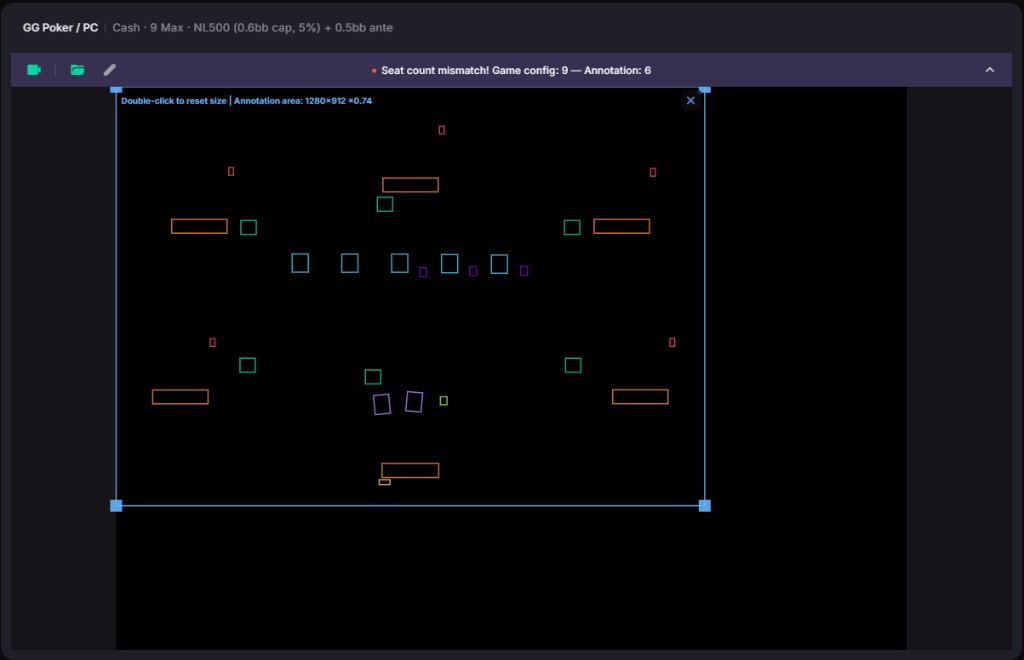
The video area lets you manually scale and move the profile boxes to help align them with the OCR elements.
| Action | Instruction |
|---|---|
| Move | Drag inside the frame, or nudge with ↑ ↓ ← →. |
| Resize | Drag any corner handle; the aspect ratio stays locked. |
| Zoom | Scroll the mouse wheel inside the frame to scale it around the cursor. |
| Reset | Double-click inside the frame to restore its original position and scale. |
| Deselect | Click outside the frame, press Esc, or use the deselect button. |
The notice bar shows the current input source and profile status. Click it to collapse or expand the panel.
Create detection profile
A detection profile maps each region of your table so the engine can track the hand. Pick a ready-made one, or build your own with the Detection Profile Editor.
Grab results
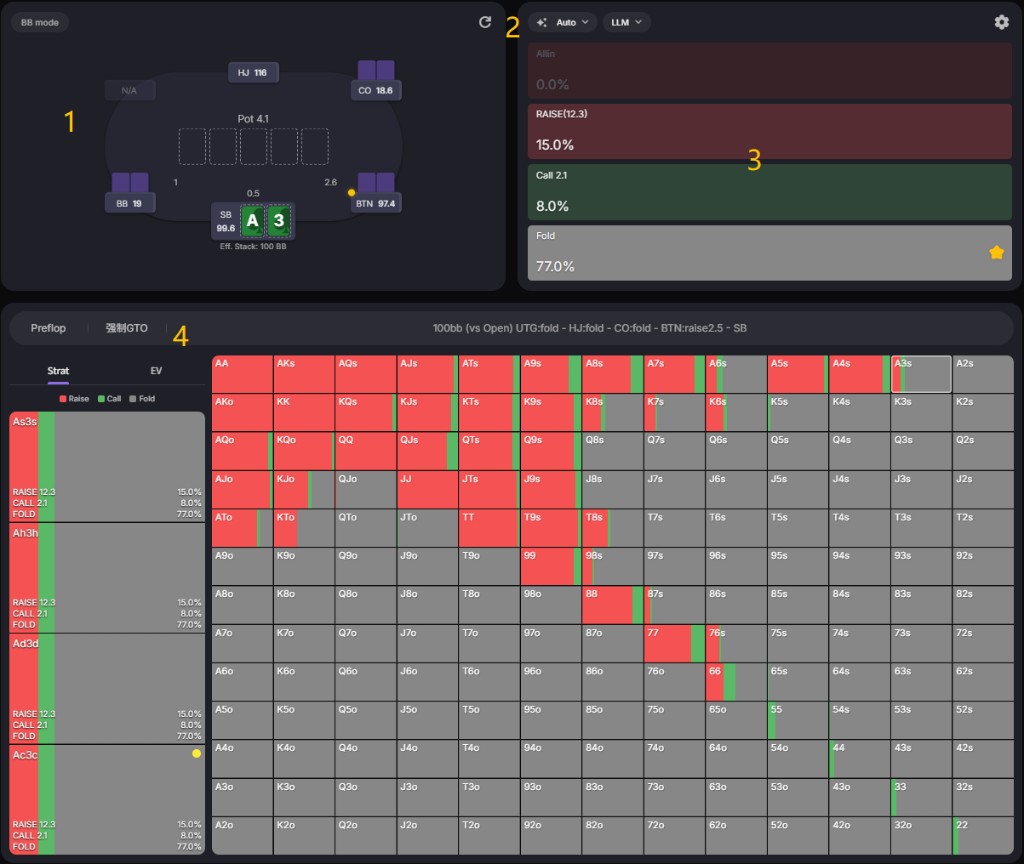
The Strategy Provider area is where you choose the strategy mode and where the final strategy output is shown. All strategy selection and configuration live here.
Choose villan type
Besides showing the OCR read of the table, this area lets you set each player’s profile. Player profiles drive the exploit engine’s villain models and the LLM’s read on opponent styles.
| Element | Brief |
|---|---|
| Seat plate | Click to assign a villain profile, used by the exploit model and the LLM. |
| Table elements | Mirror the OCR-read table info, so you can check whether the read is correct. |
If the OCR numbers look wrong, click the refresh button to end the current hand and stop further strategy requests and uploads.
Pick strategy engine
Several postflop strategy modes are available. The mode you pick is recorded with the game data under that mode (preflop on this platform always follows GTO strictly). You can also lightly configure the strategy engine.
| Mode | Brief |
|---|---|
| Auto | Prefers GTO, then falls back to LLM when GTO has no strategy. |
| GTO | Pure GTO. Stops providing strategy on multiway spots or missing nodes. |
| LLM | Pure LLM. All strategy comes from the language models. |
| GTO+ | GTO boosted by the exploit engine; villain ranges adjust to profiles and actions. |
| Exploit | Targets opponents with preset villain-profile models to find the highest-EV action. |
LLM mode needs a model picked from the dropdown, with each model’s weight set in the settings. GTO mode lets you choose solvers of different performance, tuned to your computer’s specs.
View final results
This shows the final result of your chosen strategy mode. For LLM, the outputs are blended by your configured weights into a single answer. What you see varies by mode.
A star after an action bar marks the randomly sampled action to play.
Look into details
This area shows the detailed data behind each strategy. After hero acts, it stays available to read until the next update node.
| Section | Brief |
|---|---|
| Strat | Recommended action frequencies for the hand. |
| EV | Expected value in big blinds, the average chips a hand wins or loses across all runouts weighted by the strategy’s action mix. Higher EV means a more profitable spot. |
| EQ | Equity, your hand’s share of the pot at showdown, computed against the opponent’s range over every possible board. It’s your raw chance of ending up best, before any betting. |
| EQR | Equity realization, the share of your raw equity you actually capture (EV divided by EQ). Below 100% means you lose value (e.g. forced folds); above 100% means you over-realize through fold equity and position. |
Select different cells in the 13×13 grid to drill into per-suit details.