Pokercat Guide
Capture Setup
Pokercat supports three capture methods: browser capture, OBS Virtual Camera, and HDMI capture card. Different poker sites use different security levels, so start with the recommended method for your site and move up one level only if the table does not appear correctly in the video area.
Browser Capture
| Source | Suggestion |
|---|---|
| Browser tab | Not recommended. Tab capture compresses the image and skews the aspect ratio. |
| Window | Recommended. Window capture keeps the video feed aligned to the complete game window. |
| Entire screen | Not recommended. Full-screen capture can easily cause resolution mismatches. |
1. Open the poker table and keep it at the same size you used for the detection profile.
2. In Pokercat, open Select Input Source, then click Click to choose screen content.
3. In the browser picker, choose the content type that best matches your table layout.
4. Confirm that the table appears in the video area.
5. Select the matching detection profile, then adjust the detection box if the table is slightly offset.
OBS Capture
OBS Virtual Camera can capture sites that block screen capture, such as GGPoker. OBS is widely used streaming software, so poker clients do not normally block it. Pokercat reads its virtual camera feed inside the browser sandbox, isolated from the game client. The game is unlikely to detect which website you are using, making this a safe capture method.
Download OBS
Download OBS Studio from obsproject.com/download.
OBS Setup steps
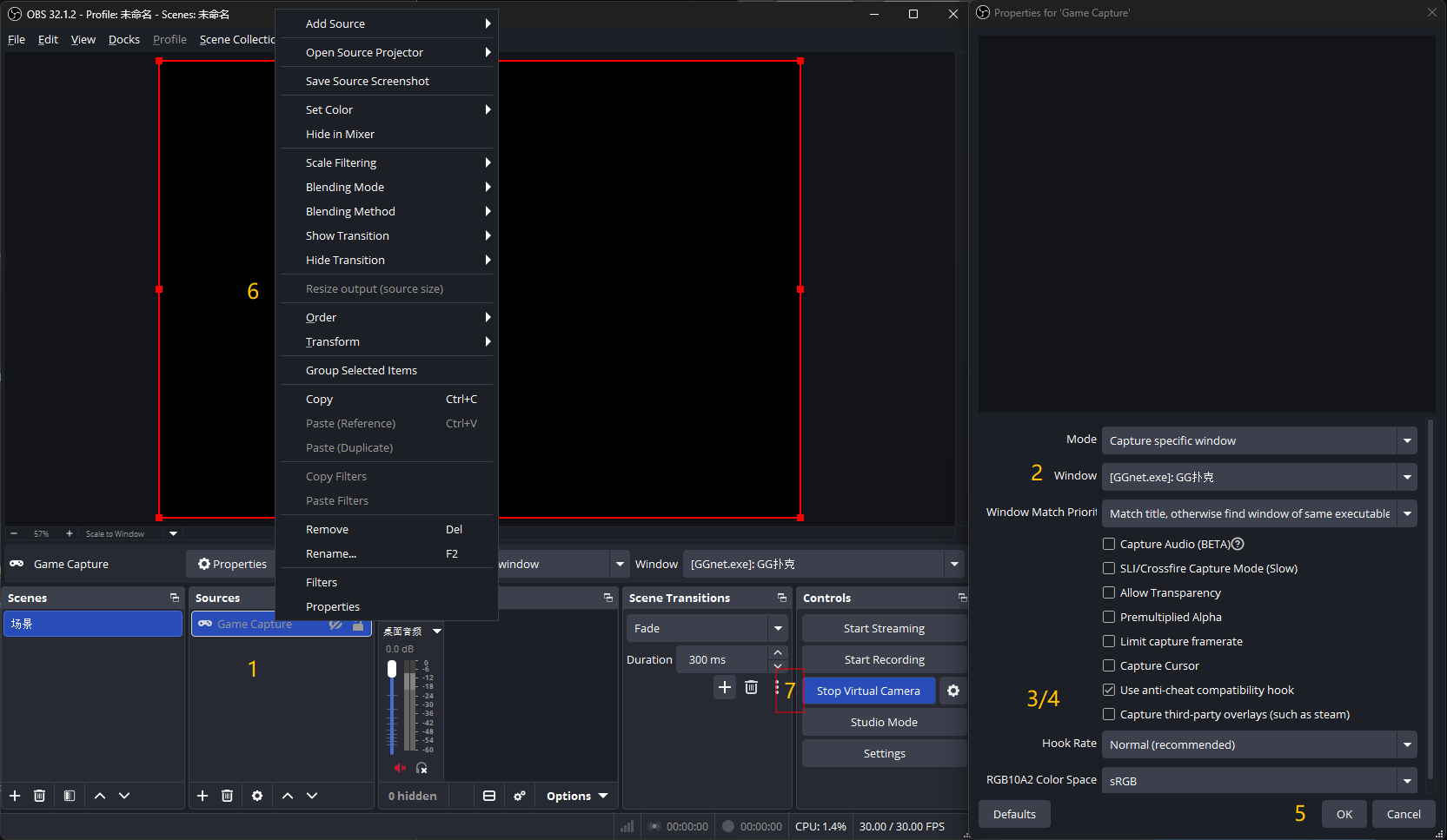
1. Add a source and choose Game Capture.
2. In Game Capture, select the poker client window.
3. Turn off Capture Cursor.
4. Turn on Use anti-cheat compatibility hook.
5. Click OK.
6. First move and resize the poker client window to its final size and position. Only then right-click Game Capture and choose Resize output (source size).
7. Click Start Virtual Camera.
Pokercat Setup steps
1. Enter the dashboard.
2. Click Select Input Source.
3. Open the Camera dropdown and select OBS Virtual Camera.
HDMI Capture Card
HDMI capture is intended for a two-computer setup. The poker computer only outputs a video signal, while the Pokercat computer receives that signal through a capture card and reads it through the browser’s Camera input. This keeps Pokercat off the poker computer and provides the strongest isolation path.
HDMI Setup steps
1. On the poker computer, connect the HDMI output to the capture card’s HDMI input.
2. Plug the capture card into the separate computer running Pokercat, preferably through USB 3.0.
3. On the poker computer, choose Duplicate or Extend in Windows display settings depending on your layout.
4. Open the poker table on the display that is being captured.
5. Keep the output resolution stable, preferably 1920x1080.
6. On the Pokercat computer, confirm that Windows recognizes the capture card as a camera device, such as USB Video, HDMI Capture, or UVC Camera.
Pokercat Setup steps
1. Enter the dashboard.
2. Click Select Input Source.
3. Open the Camera dropdown and select your capture card device.
Hardware roles
| Device | Role |
|---|---|
| Poker computer | Runs the poker client and sends HDMI output only. |
| Pokercat computer | Runs Pokercat and receives the capture card over USB. |
Use a UVC-compatible capture card for browser support. If the device does not appear in the Camera dropdown, check Windows camera permissions, USB connection, driver status, and whether another app is already using the device.