Pokercat Guide
PokerStars
To recognize game information accurately, complete the capture setup, adjust the in-game settings, and create a matching detection profile for this site. These are mostly one-time preparation tasks, so once they are done you usually do not need to repeat them.
Capture game screen
PokerStars may block browser screen capture or make the table freeze or black out. OBS Capture is usually enough for a stable table image and is easier to set up because it runs on the same computer as Pokercat, but it is not as isolated as HDMI capture. If you have higher account-safety requirements, use an HDMI Capture Card with a second computer; this setup is more involved because it requires dedicated HDMI capture hardware and another machine.
Adjust in-game setting
Follow the in-game settings below exactly.
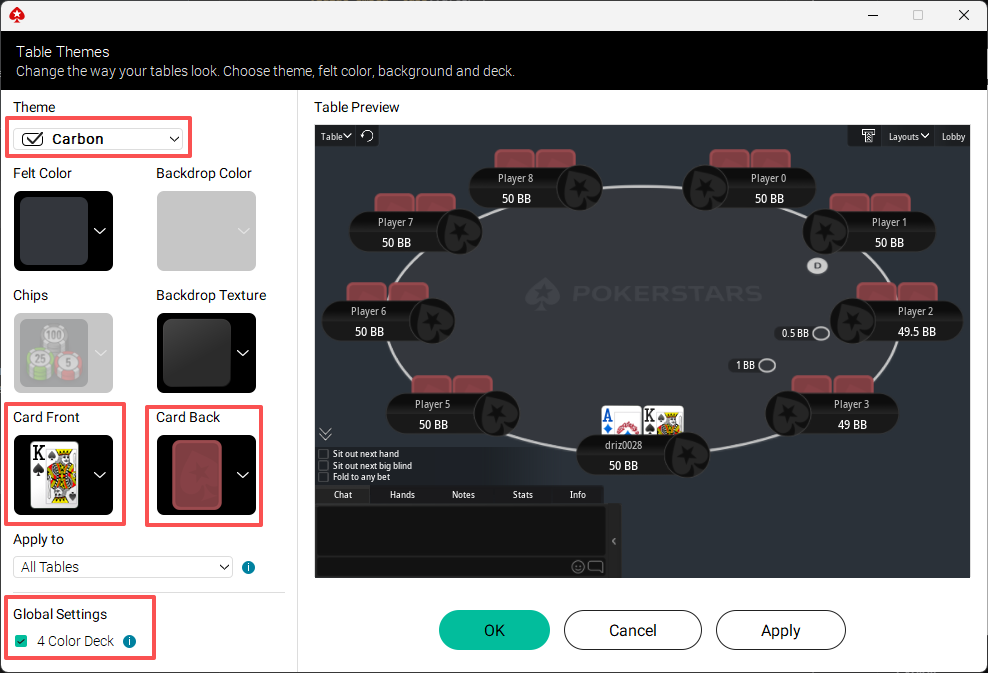
Settings > Table Appearance
Section titled “Settings > Table Appearance”Themes
| Setting | Value |
|---|---|
| Felt Color | A dark color |
| Backdrop Color | A dark color |
| Backdrop Texture | A dark color |
| Front Deck | See the image below |
| Back Deck | A light color |
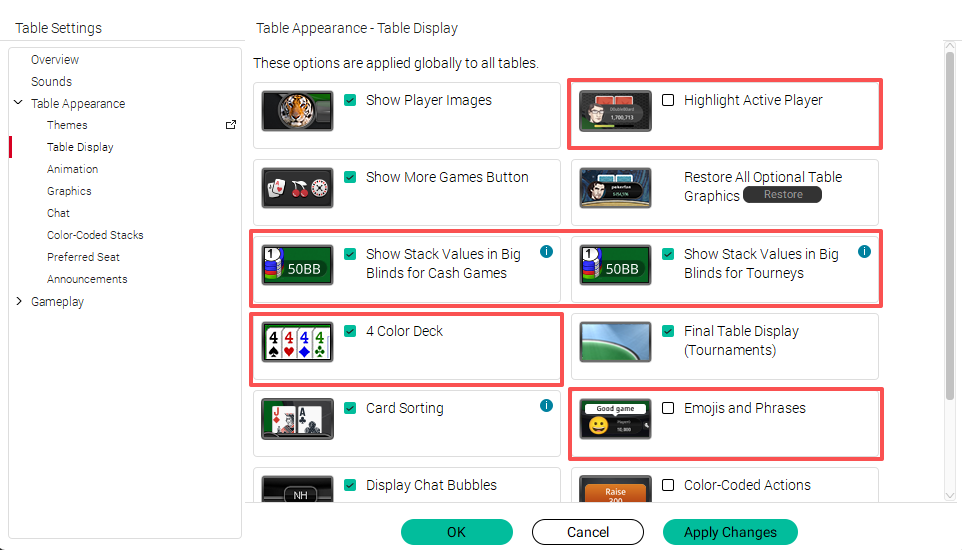
| 4 Color Deck | ON |
Table display
| Setting | Value |
|---|---|
| Highlight Active Players | OFF |
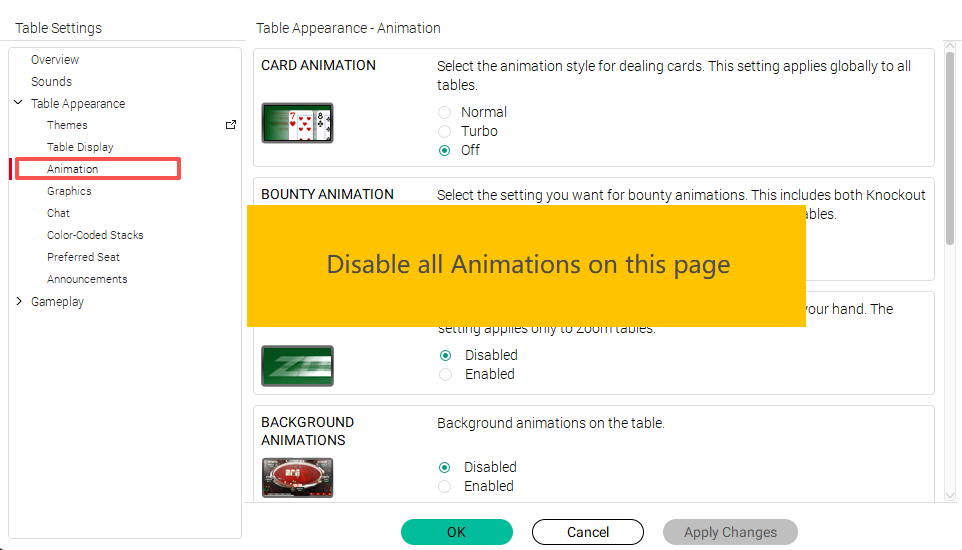
| Animations | Disable all |
| Chat | ”Display chat bubble” OFF, “Display emoticons” OFF |
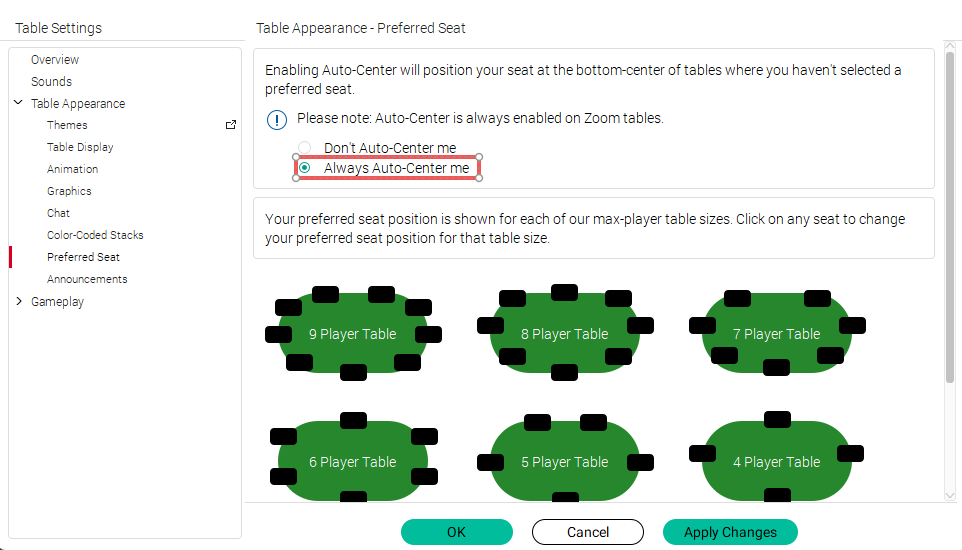
| Preferred seat | Pick “always auto centre me” |

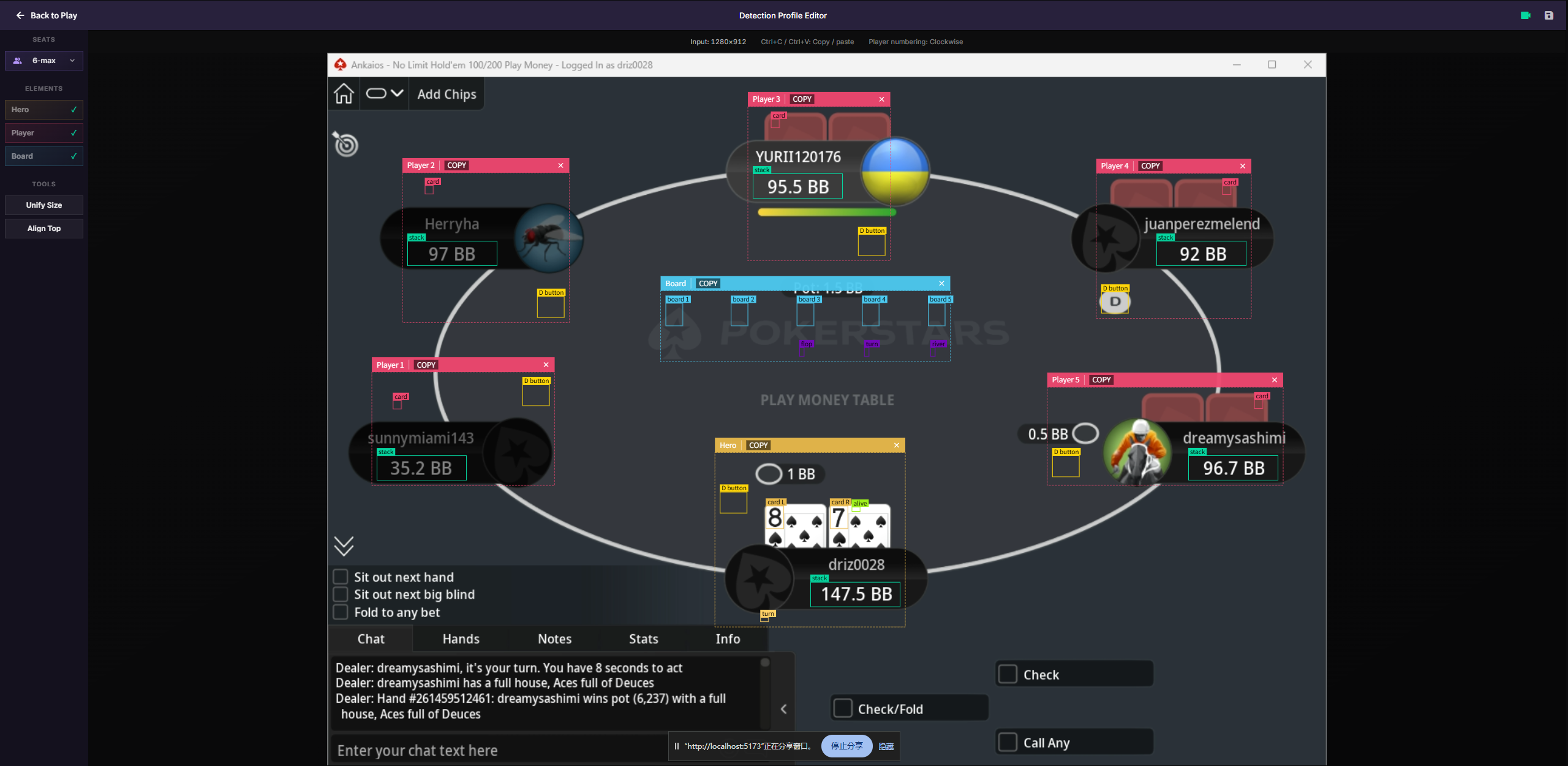
Make detection profile for this site
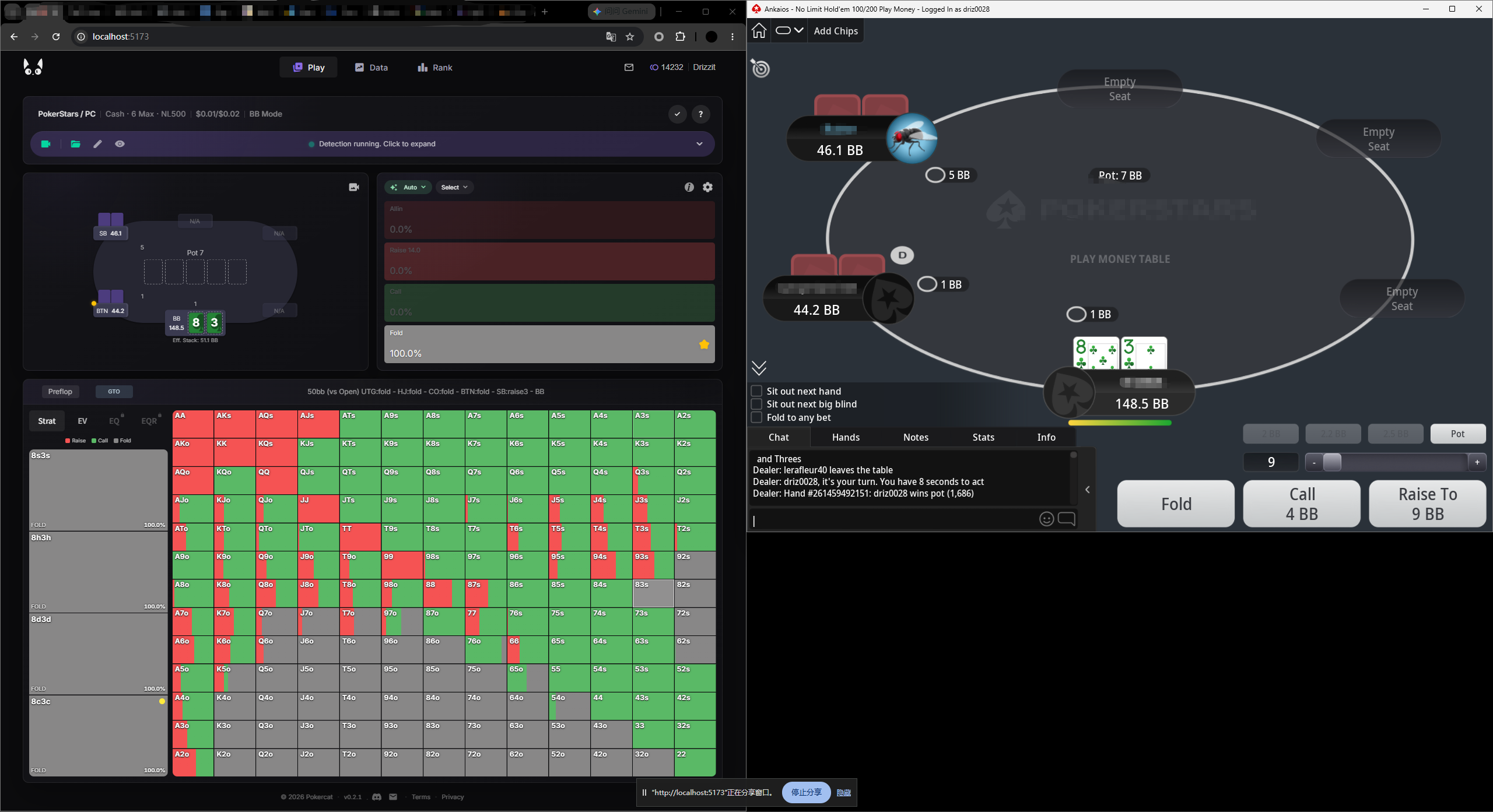
No pre-made example yet -building your own takes only a few minutes in the editor.