Browser Capture
Browser capture is the default setup. It uses the browser’s built-in screen sharing, so no extra software or hardware is needed.
Setup steps

1. Open the poker table and keep it at the same size you used for the detection profile.
2. In Pokercat, open Select Input Source, then click Click to choose screen content.
3. In the browser picker, choose the content type that best matches your table layout.
| Source | Suggestion |
|---|---|
| Window | Recommended. Window capture keeps the video feed aligned to the complete game window. |
| Browser tab | Recommended first for web-based apps. Choose the tab that contains the table. |
| Entire screen | Not recommended. Full-screen capture can easily cause resolution mismatches. |
4. Confirm that the table appears in the video area.
5. Select the matching detection profile, then adjust the detection box if the table is slightly offset.
Anti-capture limitation
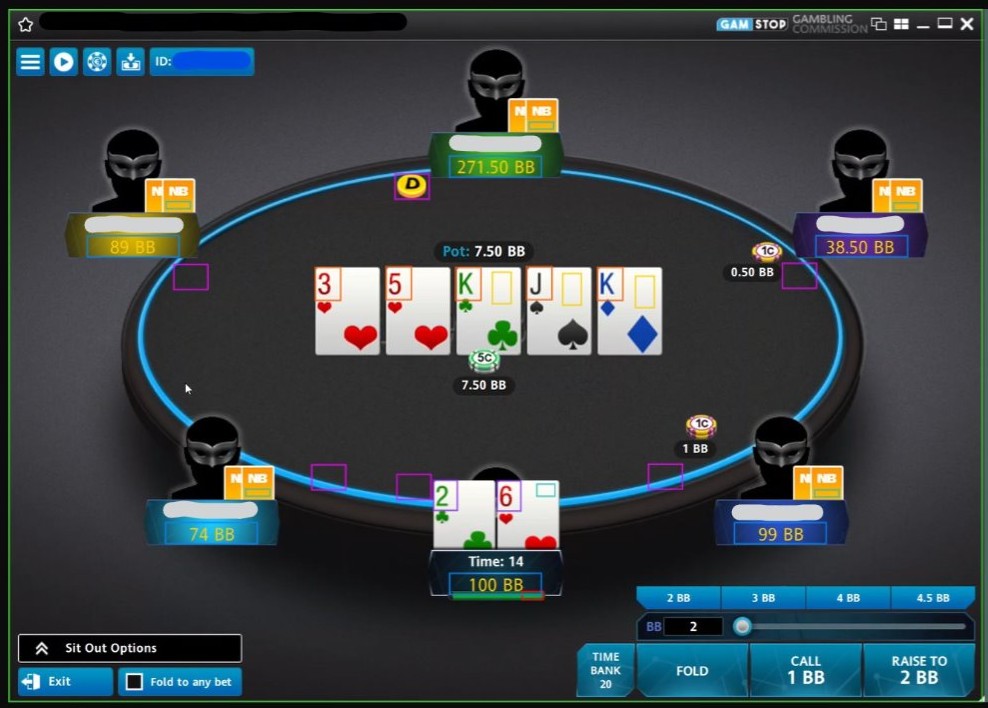
Some poker clients use anti-capture systems that prevent the browser from reading the table image. If the video area is black, frozen, or missing the table, use OBS Capture or HDMI Capture Card instead.
OBS Capture
OBS Virtual Camera sends the OBS preview to Pokercat as a normal camera feed. This usually solves poker clients that freeze, black out, or hide the table during browser screen capture. For most anti-capture cases, OBS Capture is enough to get a normal game image.
OBS Setup steps
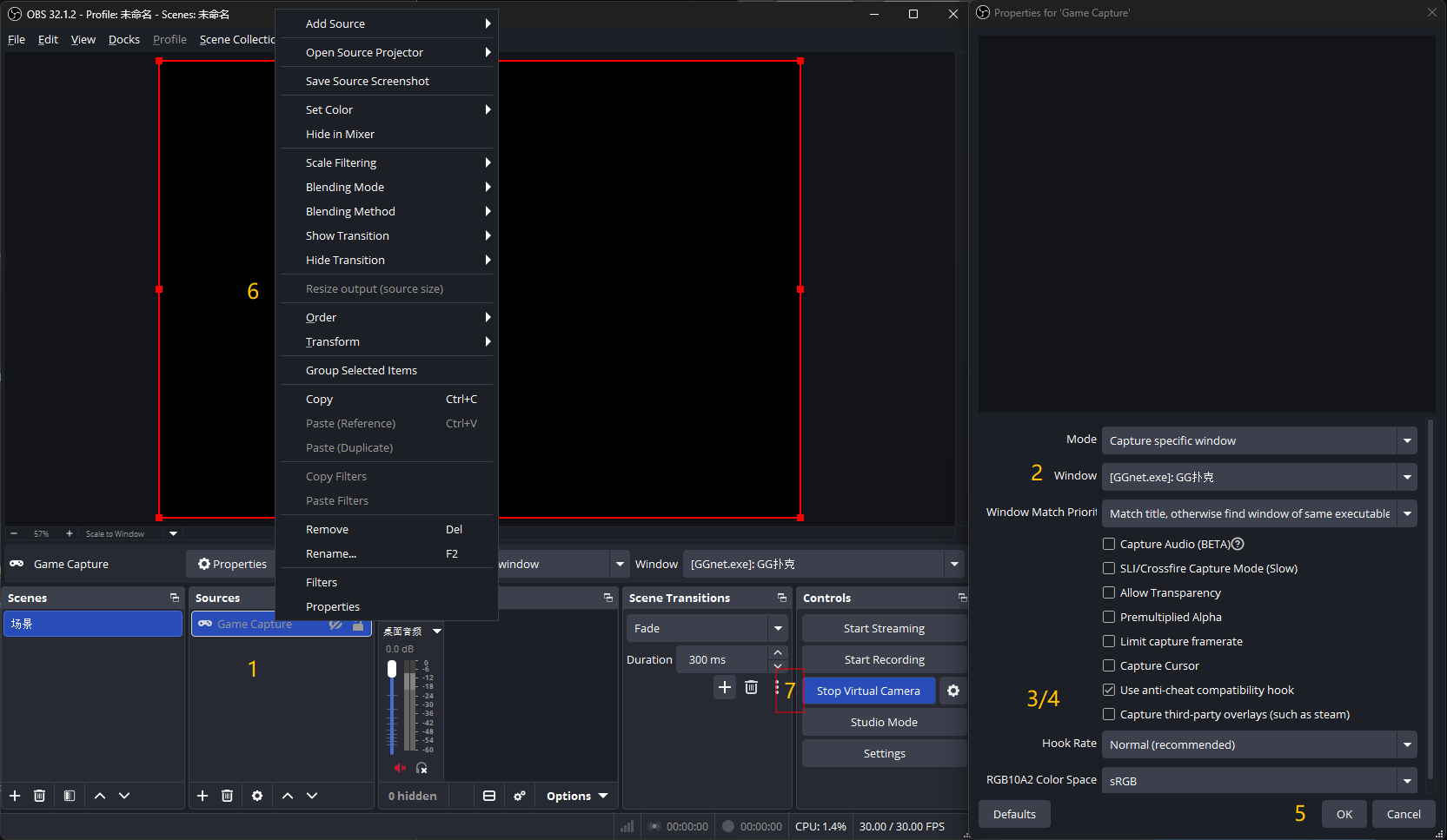
1. Add a source and choose Game Capture.
2. In Game Capture, select the poker client window.
3. Turn off Capture Cursor.
4. Turn on Use anti-cheat compatibility hook.
5. Click OK.
6. Right-click Game Capture and choose Resize output (source size). This is important because it keeps the captured game image precise.
7. Click Start Virtual Camera.
Pokercat Setup steps
1. Enter the dashboard.
2. Click Select Input Source.
3. Open the Camera dropdown and select OBS Virtual Camera.
HDMI Capture Card
HDMI capture is intended for a two-computer setup. The poker computer only outputs a video signal, while the Pokercat computer receives that signal through a capture card and reads it through the browser’s Camera input. This keeps Pokercat off the poker computer and provides the strongest isolation path.
HDMI Setup steps
1. On the poker computer, connect the HDMI output to the capture card’s HDMI input.
2. Plug the capture card into the separate computer running Pokercat, preferably through USB 3.0.
3. On the poker computer, choose Duplicate or Extend in Windows display settings depending on your layout.
4. Open the poker table on the display that is being captured.
5. Keep the output resolution stable, preferably 1920x1080.
6. On the Pokercat computer, confirm that Windows recognizes the capture card as a camera device, such as USB Video, HDMI Capture, or UVC Camera.
Pokercat Setup steps
1. Enter the dashboard.
2. Click Select Input Source.
3. Open the Camera dropdown and select your capture card device.
Hardware roles
| Device | Role |
|---|---|
| Poker computer | Runs the poker client and sends HDMI output only. |
| Pokercat computer | Runs Pokercat and receives the capture card over USB. |
Use a UVC-compatible capture card for browser support. If the device does not appear in the Camera dropdown, check Windows camera permissions, USB connection, driver status, and whether another app is already using the device.
Detection Profile Editor
Where to find it
Section titled “Where to find it”
In the dashboard, click the edit button above the notification bar to open the editor as a full-screen modal.
Steps to create a detection profile
Section titled “Steps to create a detection profile”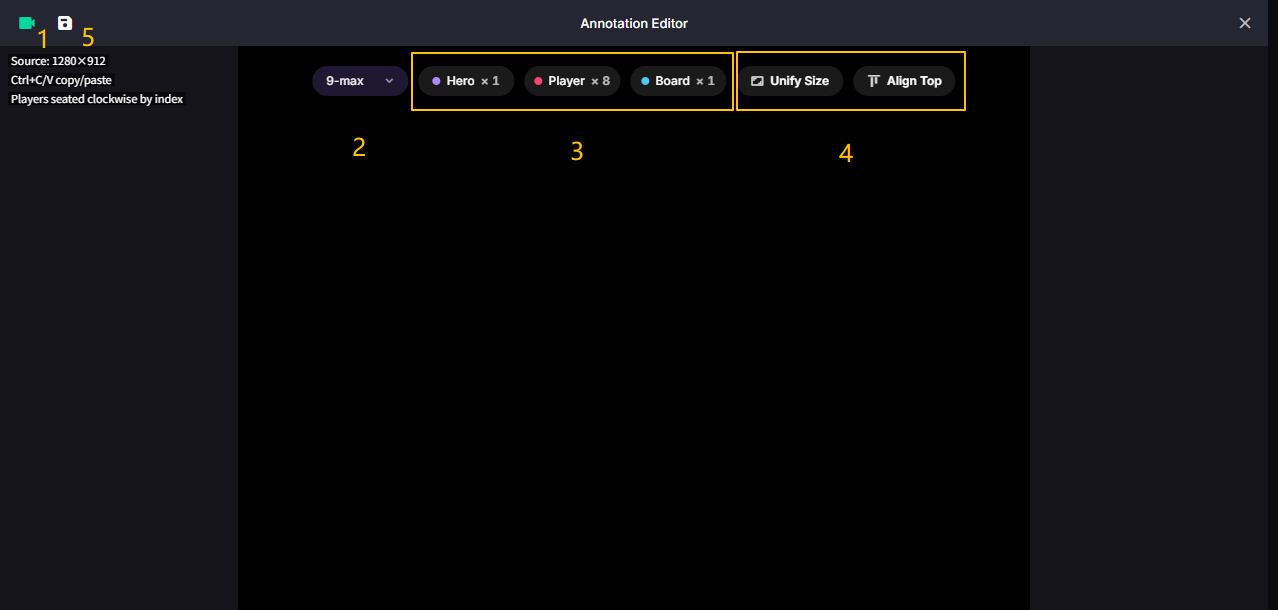
1. Choose an input source. Make sure you have already finished Capture Setup.
2. Choose the player count. Pokercat will automatically generate the matching detection groups.
3. Finish the hero, player, and board annotations. See Instructions of detection elements.
4. Use the annotation tools to align and duplicate boxes faster. See Useful tools.
5. Save a new profile or overwrite one of your own profiles. See Save detection profile.
Instructions of detection elements
Section titled “Instructions of detection elements”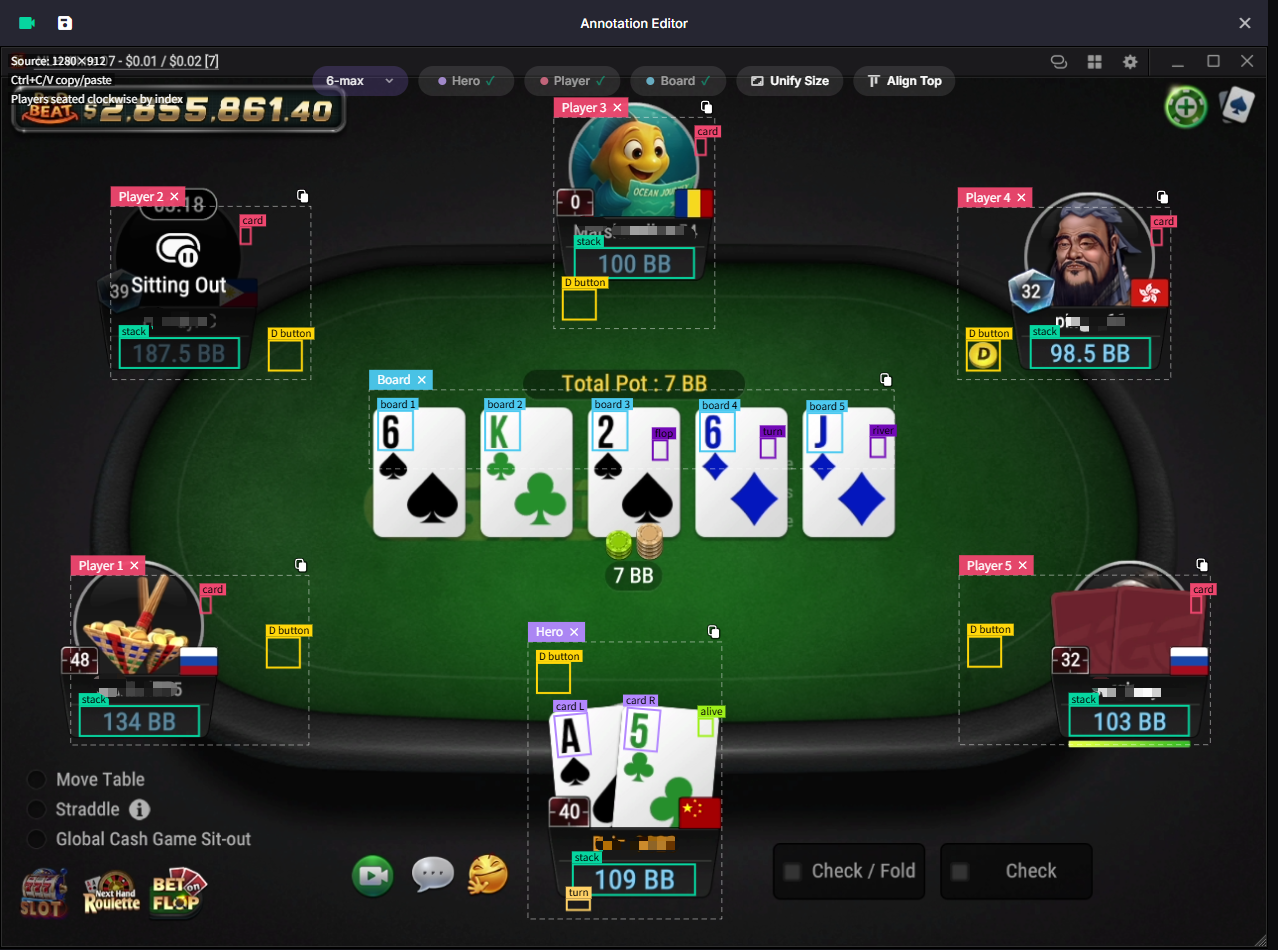
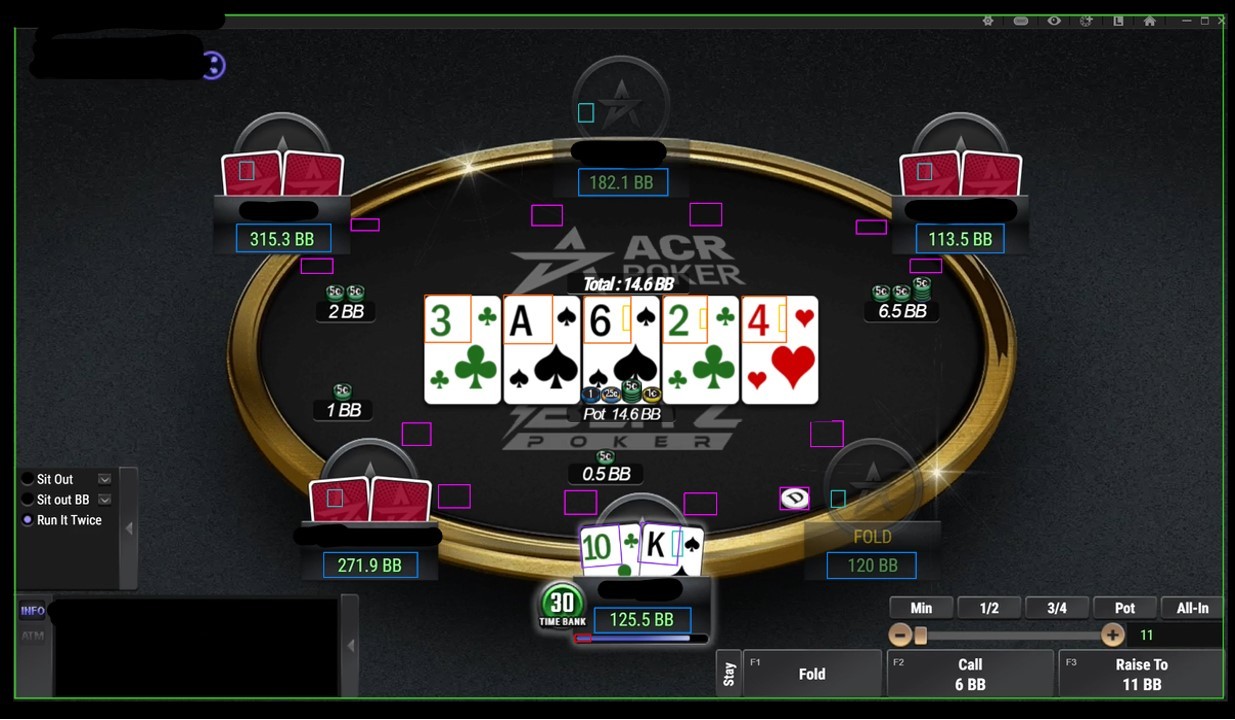
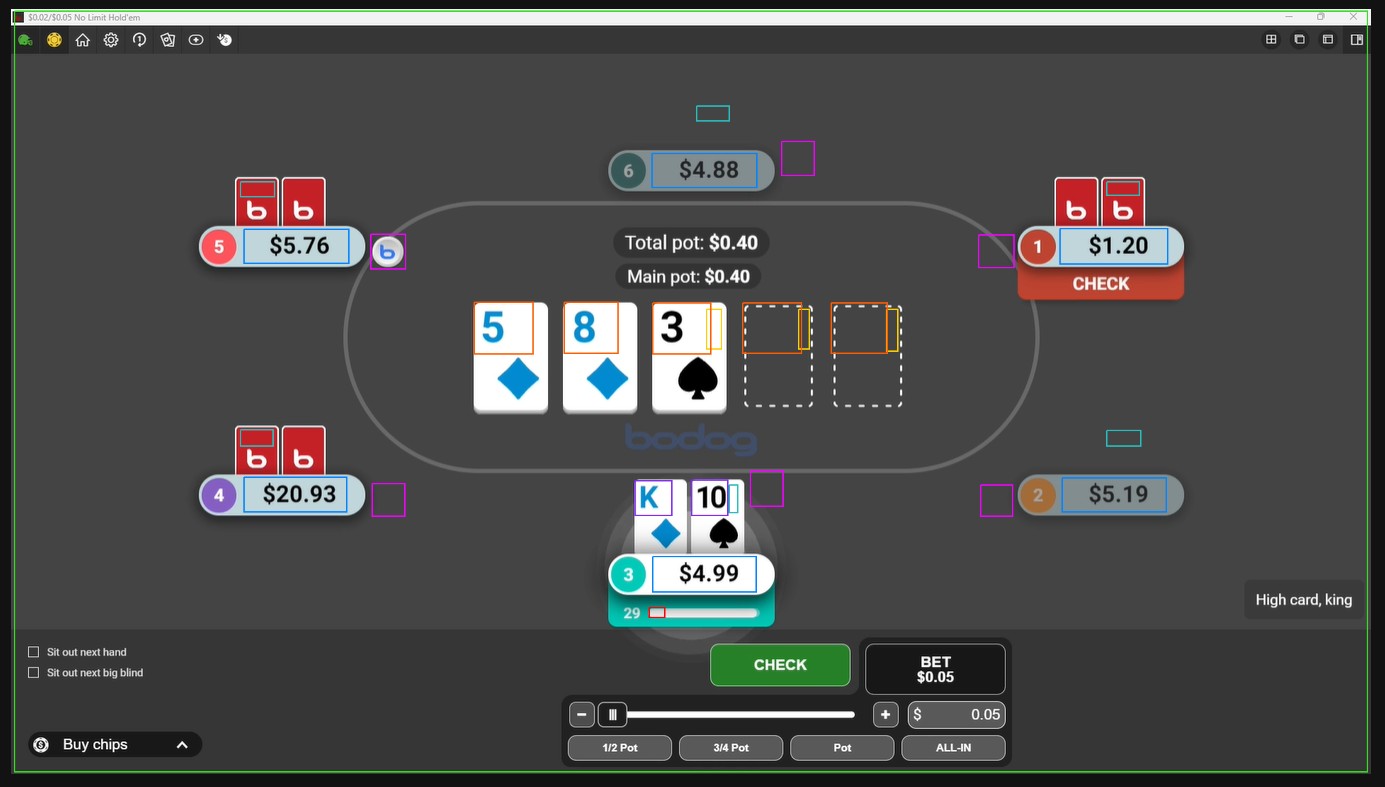
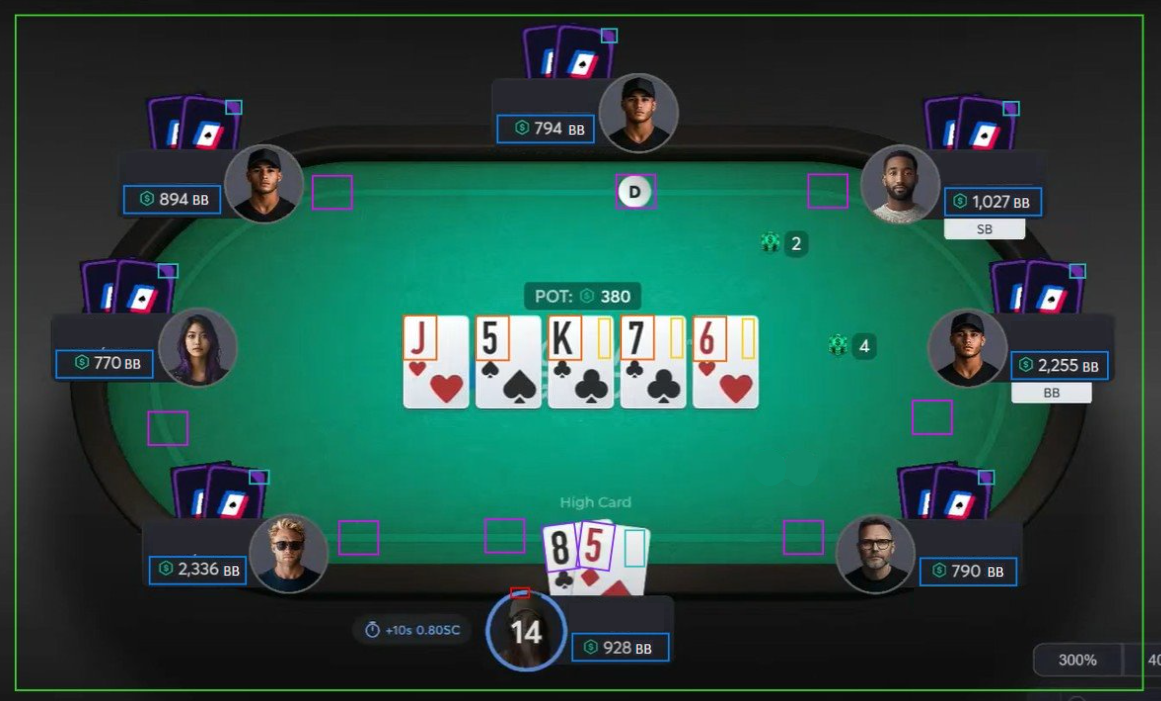
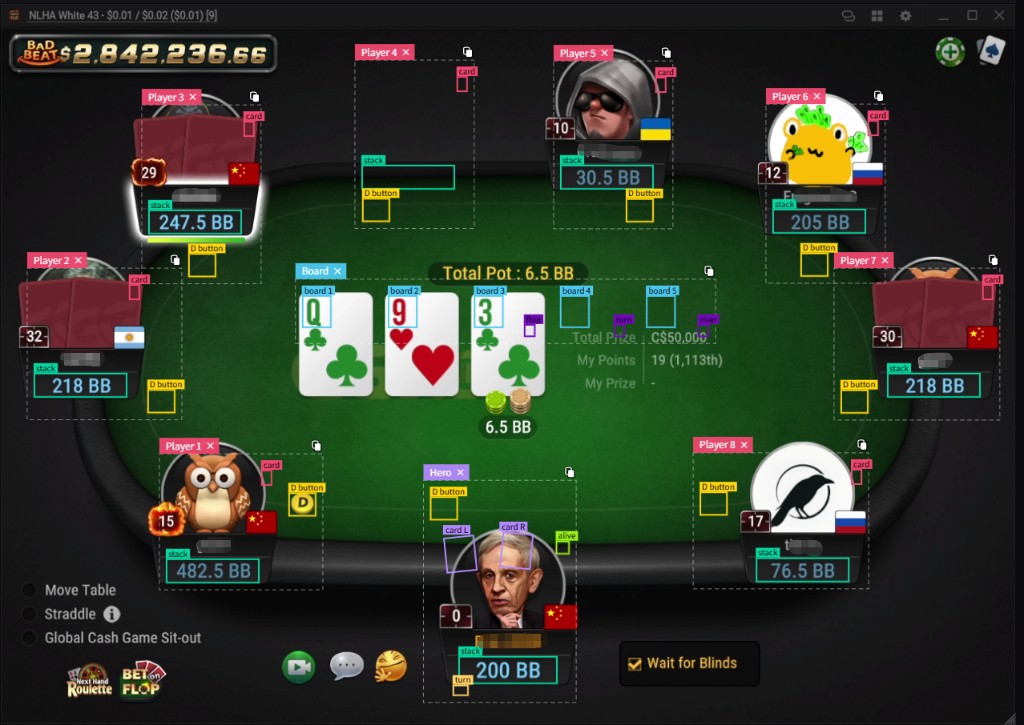
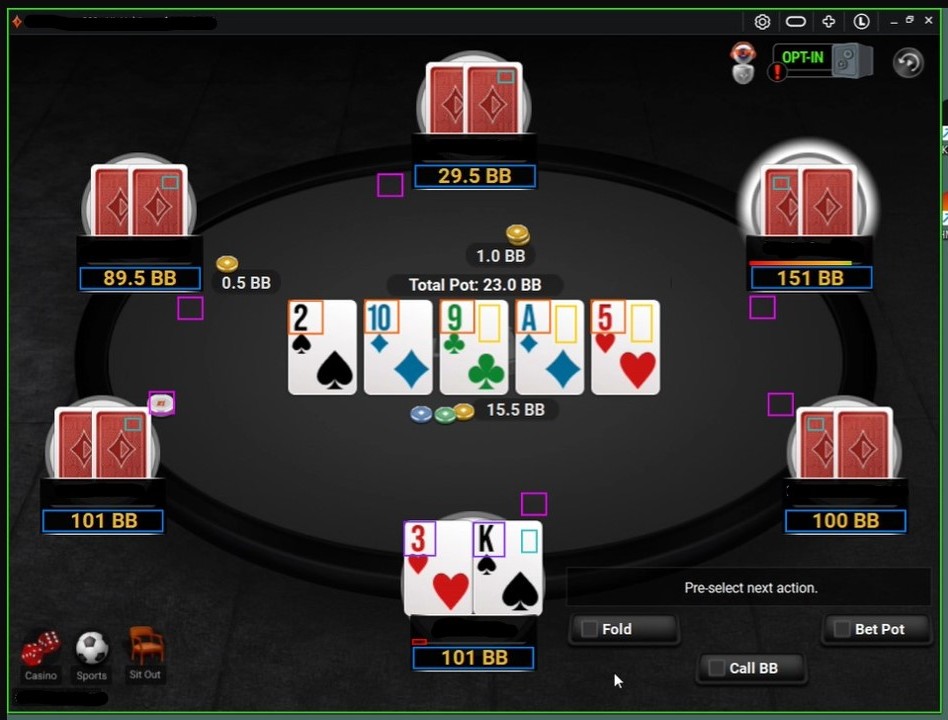
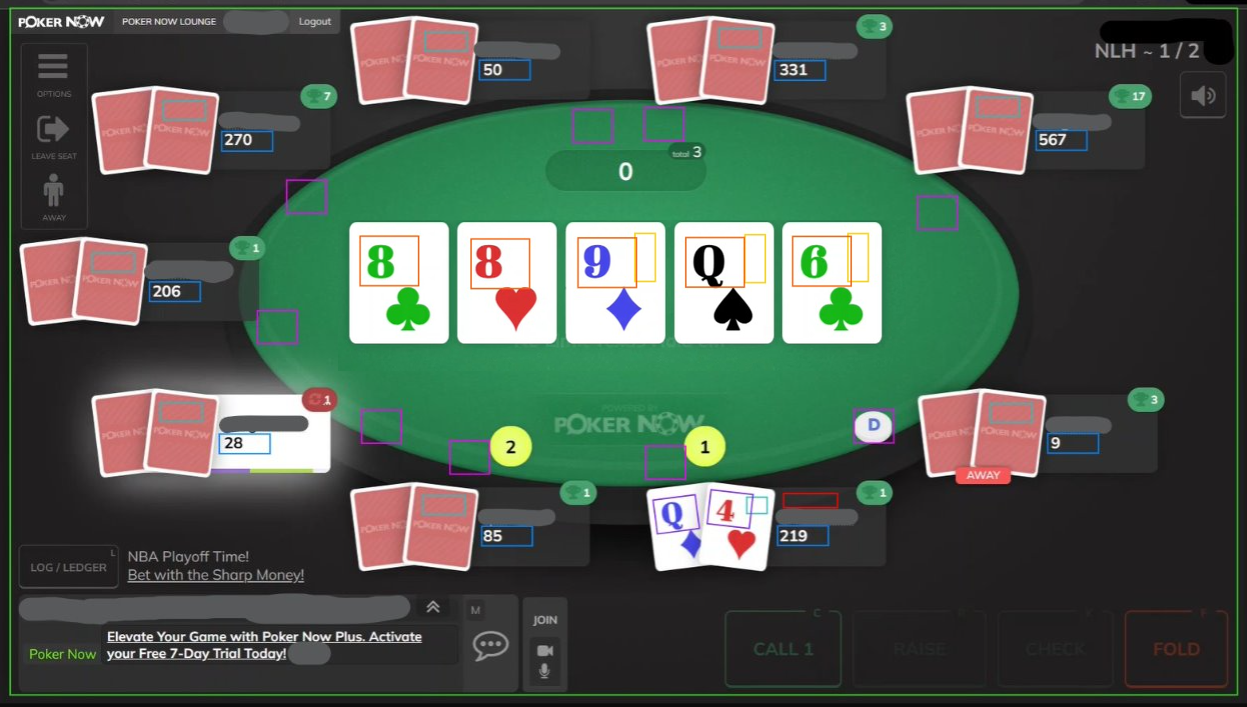
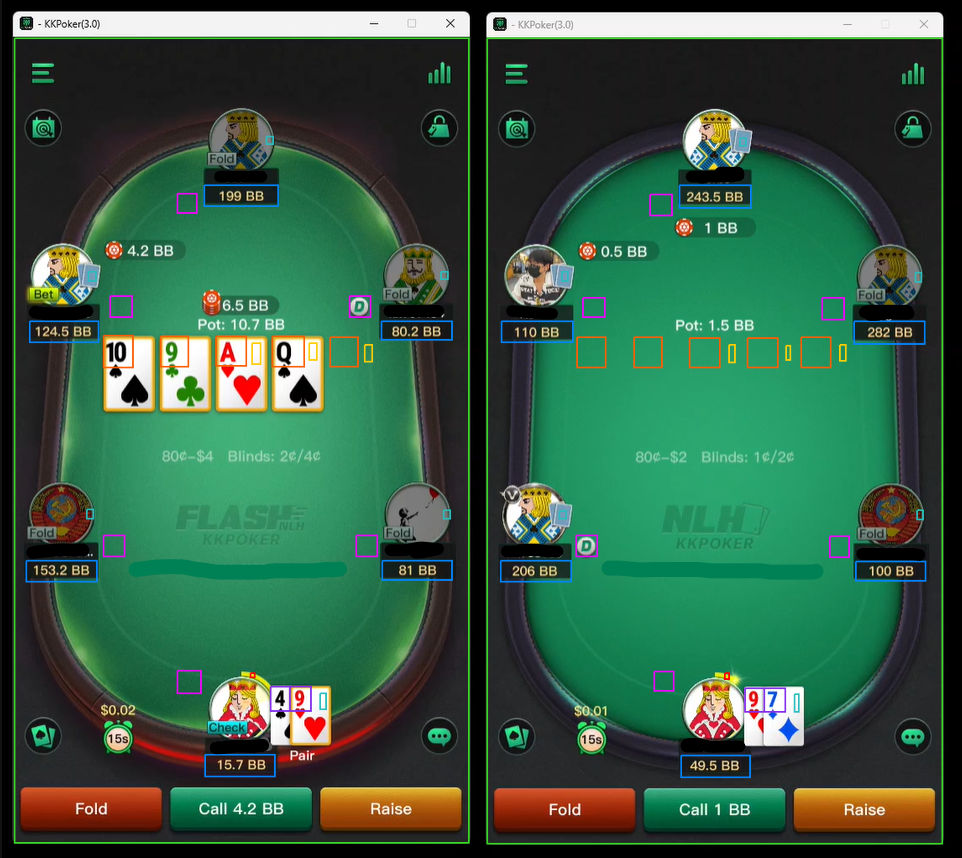
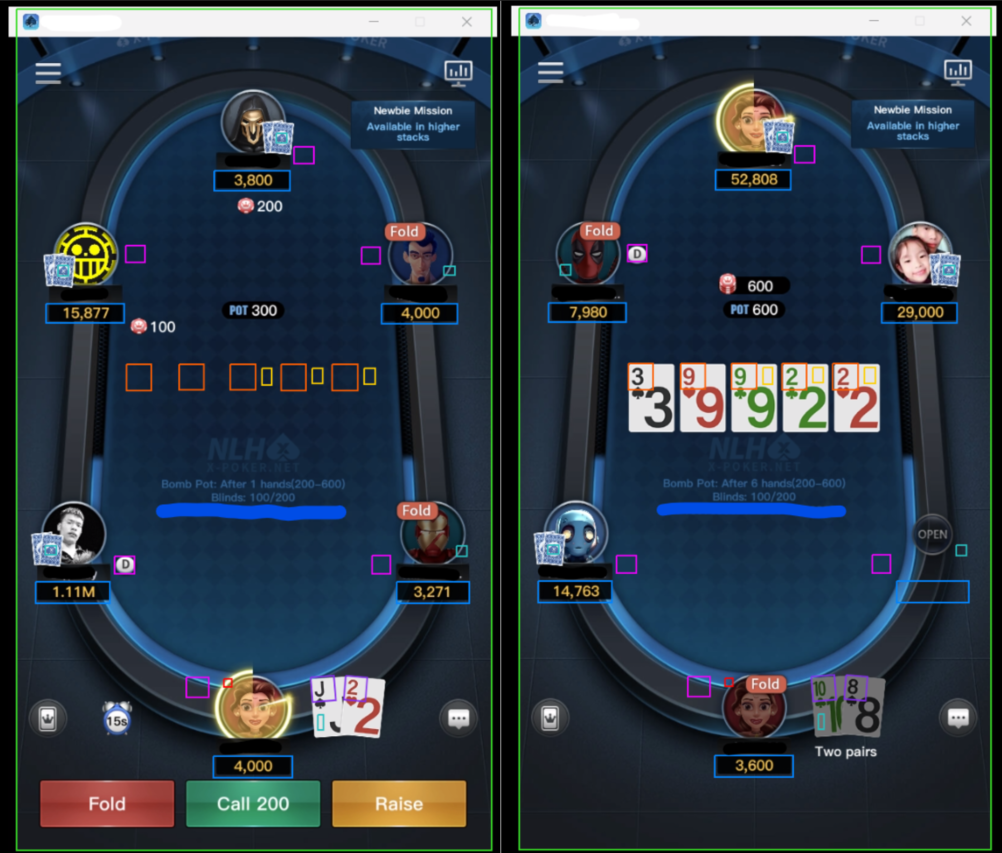
Most elements follow the layout shown above. Pay extra attention to these areas:
| Element | Notes |
|---|---|
| Hero turn | Hero action indicator. Because its color must stay stable, it is usually best placed on the end segment of the action timer bar. |
| Hero card | Some hero cards are tilted. Drag the rotation handle above the box to match the card angle. |
| Player card | Avoid the player avatar as much as possible, because avatar colors are unpredictable. |
| Board card | Fit tightly around the rank text. Do not include the suit or the card border. |
| Stacks | Wrap the full number. Stacks may be as long as XXX.XX. |
Useful tools
Section titled “Useful tools”Use these tools to speed up precise editing:
| Tool | How to use it |
|---|---|
| Horizontal align | Align several boxes at once. This is especially useful for all board cards. |
| Copy size | Reuse the same width and height across similar elements. |
| Copy group | Use Ctrl + C / Ctrl + V to duplicate a selected group. |
| Nudge | Use the arrow keys to fine-tune the selected box position. |
Save detection profile
Section titled “Save detection profile”Click Profiles in the editor header to open the profile manager.
| Action | Notes |
|---|---|
| Apply | Load a system profile or one of your own profiles into the editor. |
| Save | Create a new profile. You need to enter a name and choose the matching platform. |
| Overwrite | Select an existing profile, choose the platform, then confirm overwrite. Regular users can overwrite their own profiles only. |
| Delete | Delete one of your own profiles from My Annotations. |
Before saving, Pokercat checks that an input source is loaded, a player count is selected, and all required annotations are complete. If anything is missing, the profile manager shows the error in place.
Insert game data
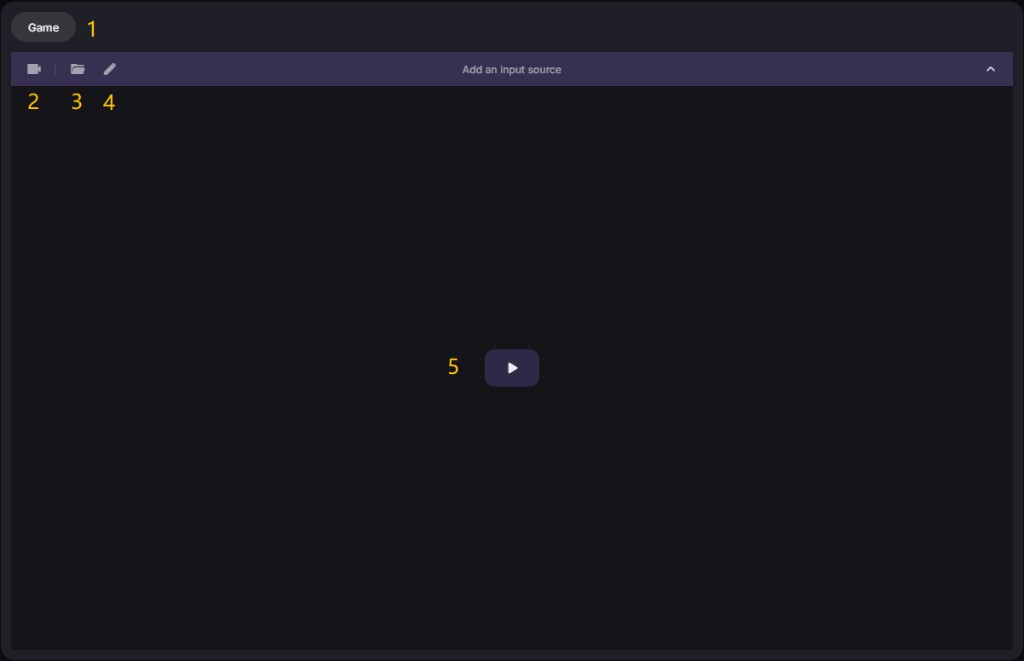
Choose game type
Game type covers more than the game format. These settings also feed your poker statistics, so fill them in carefully to keep your game records accurate.
| Element | Brief |
|---|---|
| Platform | The poker site or client. |
| Game type options | Format, table size, and rake. They are nested, so each choice narrows the next. |
| Stakes | The blind level. It is the key basis for your profit stats, so take care to get it right. |
| Chip Mode options | Read values as big blinds or raw chips. In chips mode, set how many chips equal one BB. |
The Small Blind is filled in automatically from the Stakes you pick. Only custom stakes need it entered by hand. Note that it is not always exactly 0.5 BB; some games use a slightly different value.
Insert video source
Choose how the dashboard captures the table. You can share your desktop, a browser tab, or a single window, or use a camera for games that block screen capture.
| Element | Brief |
|---|---|
| Screen share | The browser’s built-in screen share. It grabs an ordinary game window, tab, or desktop. |
| Camera input | A virtual or hardware camera feed, for games that block screen capture. |
Camera input accepts a software virtual camera (such as OBS) or an HDMI capture card. A capture card reads the raw video signal directly, so it bypasses software anti-capture such as GGPoker’s, where the table blacks out for screen recorders. See Capture Setup for the full walkthrough.
Pick detection profile
Pokercat reads the table with OCR, recognizing the cards, stacks, and other on-screen text straight from your video. Because of this, the wrong resolution or player count will stop it from tracking the hand correctly, so set the profile parameters with care.
| Section | Instruction |
|---|---|
| System | Preset profiles configured by admins for quick selection. They may not cover every case. |
| My Annotations | Custom profiles tuned to your screen (recommended). See Create a detection profile. |
To keep the experience smooth, Pokercat does not let users add new platforms. For the platforms currently supported, see In-game settings under Pregame Setup.
Create detection profile
A detection profile maps each region of your table so the engine can track the hand. Pick a ready-made one, or build your own with the Detection Profile Editor.
Adjust detection box
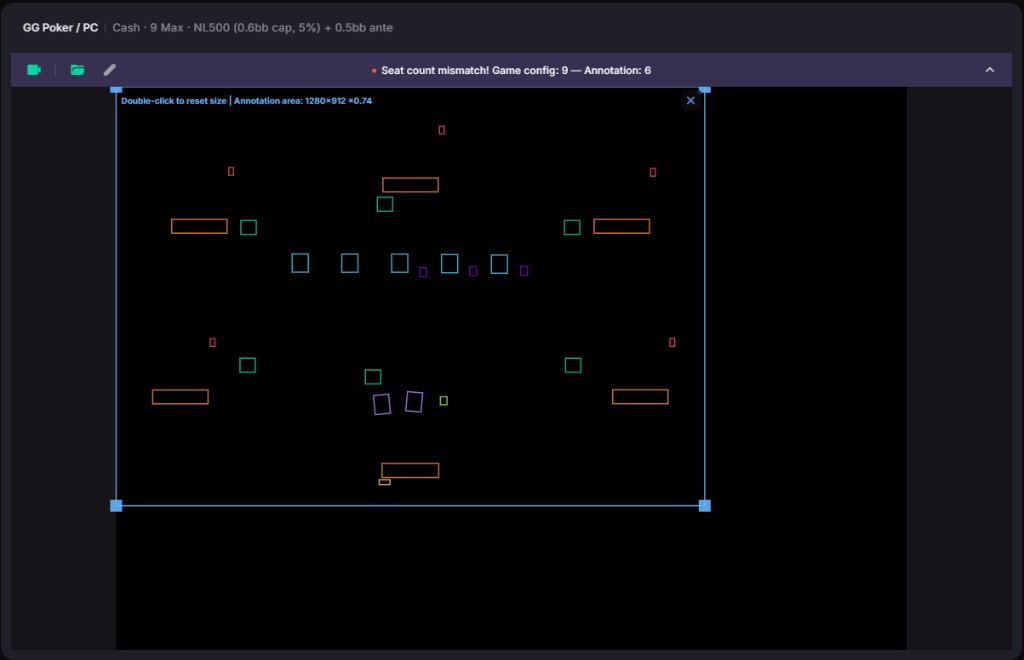
The video area lets you manually scale and move the profile boxes to help align them with the OCR elements.
| Action | Instruction |
|---|---|
| Move | Drag inside the frame, or nudge with ↑ ↓ ← →. |
| Resize | Drag any corner handle; the aspect ratio stays locked. |
| Zoom | Scroll the mouse wheel inside the frame to scale it around the cursor. |
| Reset | Double-click inside the frame to restore its original position and scale. |
| Deselect | Click outside the frame, press Esc, or use the deselect button. |
The notice bar shows the current input source and profile status. Click it to collapse or expand the panel.
Grab results
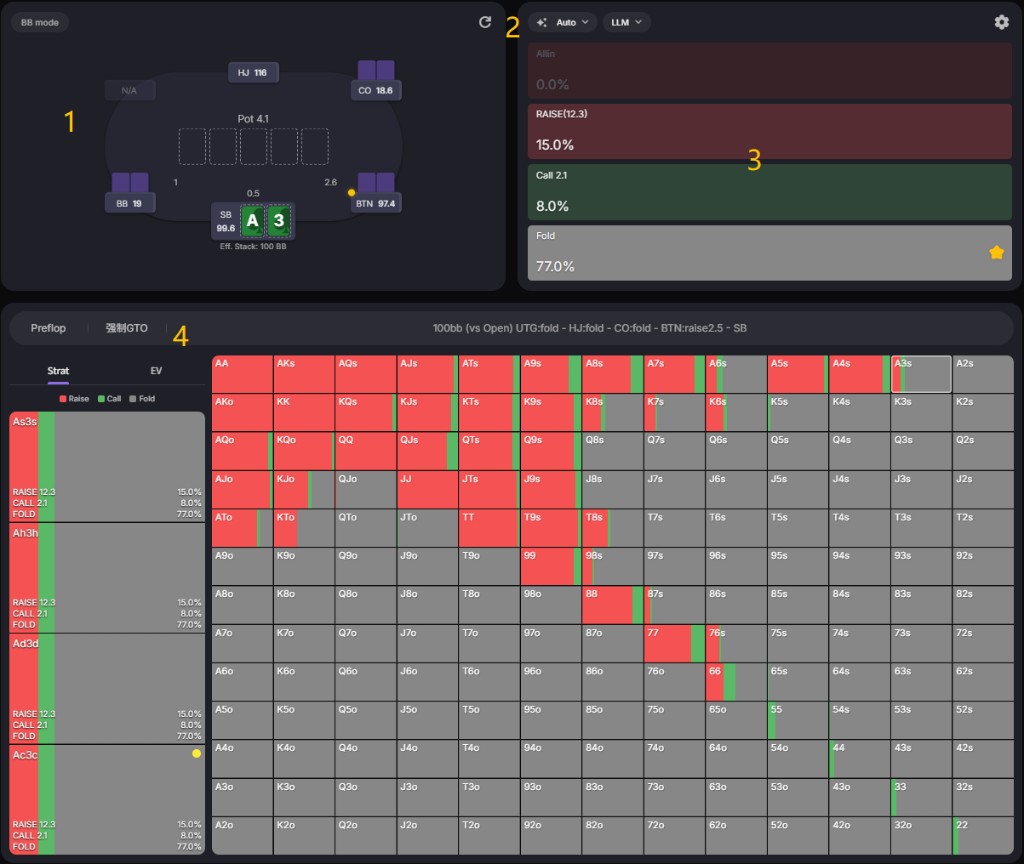
The Strategy Provider area is where you choose the strategy mode and where the final strategy output is shown. All strategy selection and configuration live here.
Choose villan type
Besides showing the OCR read of the table, this area lets you set each player’s profile. Player profiles drive the exploit engine’s villain models and the LLM’s read on opponent styles.
| Element | Brief |
|---|---|
| Seat plate | Click to assign a villain profile, used by the exploit model and the LLM. |
| Table elements | Mirror the OCR-read table info, so you can check whether the read is correct. |
If the OCR numbers look wrong, click the refresh button to end the current hand and stop further strategy requests and uploads.
Pick strategy engine
Several postflop strategy modes are available. The mode you pick is recorded with the game data under that mode (preflop on this platform always follows GTO strictly). You can also lightly configure the strategy engine.
| Mode | Brief |
|---|---|
| Auto | Prefers GTO, then falls back to LLM when GTO has no strategy. |
| GTO | Pure GTO. Stops providing strategy on multiway spots or missing nodes. |
| LLM | Pure LLM. All strategy comes from the language models. |
| GTO+ | GTO boosted by the exploit engine; villain ranges adjust to profiles and actions. |
| Exploit | Targets opponents with preset villain-profile models to find the highest-EV action. |
LLM mode needs a model picked from the dropdown, with each model’s weight set in the settings. GTO mode lets you choose solvers of different performance, tuned to your computer’s specs.
View final results
This shows the final result of your chosen strategy mode. For LLM, the outputs are blended by your configured weights into a single answer. What you see varies by mode.
A star after an action bar marks the randomly sampled action to play.
Look into details
This area shows the detailed data behind each strategy. After hero acts, it stays available to read until the next update node.
| Section | Brief |
|---|---|
| Strat | Recommended action frequencies for the hand. |
| EV | Expected value in big blinds, the average chips a hand wins or loses across all runouts weighted by the strategy’s action mix. Higher EV means a more profitable spot. |
| EQ | Equity, your hand’s share of the pot at showdown, computed against the opponent’s range over every possible board. It’s your raw chance of ending up best, before any betting. |
| EQR | Equity realization, the share of your raw equity you actually capture (EV divided by EQ). Below 100% means you lose value (e.g. forced folds); above 100% means you over-realize through fold equity and position. |
Select different cells in the 13×13 grid to drill into per-suit details.